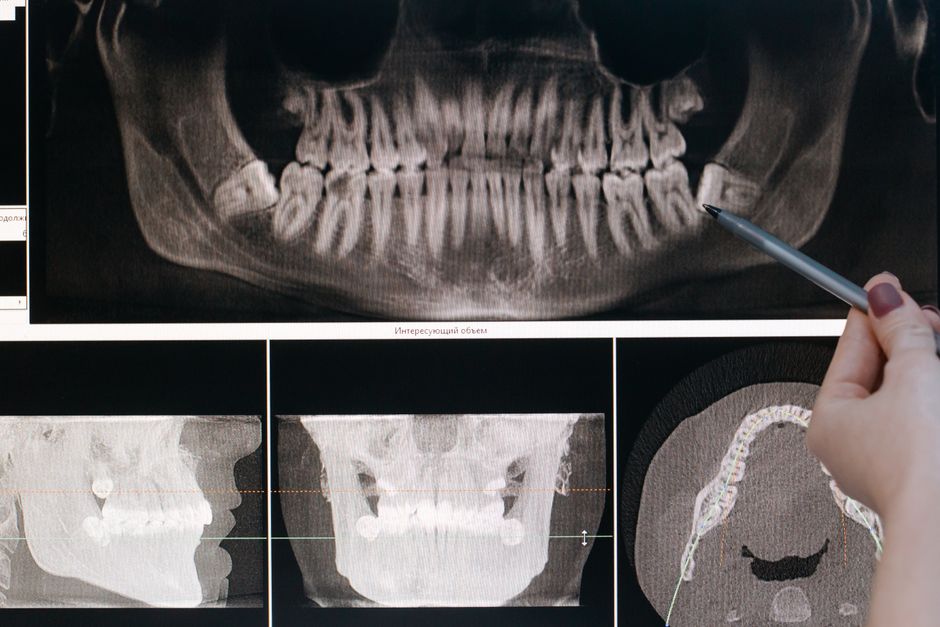
What is Clinica?
Clinica is a comprehensive dental practice management software designed to streamline workflows, enhance patient care, and improve overall efficiency. Developed with the latest technology, Clinica offers a range of innovative features that cater to the unique needs of dental professionals. With its user-friendly interface and robust functionality, Clinica has become a popular choice among dental practices worldwide.
Main Features of Clinica
Clinica’s core features include secure repositories with encryption for dental data, scheduling, and snapshots. These features enable dental professionals to manage their practice with confidence, knowing that their data is safe and easily recoverable. Additionally, Clinica’s intuitive interface allows for seamless navigation, reducing the learning curve and increasing productivity.
Installation Guide
System Requirements
Before installing Clinica, ensure that your system meets the minimum requirements. These include a 64-bit operating system, 4 GB of RAM, and 10 GB of free disk space. Additionally, a reliable internet connection is necessary for software updates and online support.
Download and Installation
Download Clinica from the official website or through a authorized reseller. Once downloaded, follow the installation wizard to complete the setup process. The installation process typically takes around 10-15 minutes, depending on your system’s specifications.
Troubleshooting Common Import Errors
Identifying Import Errors
When importing data into Clinica, you may encounter errors due to formatting issues or data inconsistencies. To troubleshoot these errors, check the import log for specific error messages. These messages will help you identify the source of the issue and take corrective action.
Resolving Import Errors
To resolve import errors, review your data for formatting inconsistencies and correct any errors. Additionally, ensure that your data is compatible with Clinica’s import requirements. If issues persist, contact Clinica’s support team for assistance.
Secure Repositories with Encryption
Why Encryption Matters
Encryption is crucial for protecting sensitive dental data. Clinica’s secure repositories with encryption ensure that your data is safeguarded against unauthorized access. This feature provides peace of mind, knowing that your patients’ confidential information is protected.
Configuring Encryption
To configure encryption in Clinica, navigate to the settings menu and select the encryption option. Follow the prompts to set up encryption, and ensure that all users have the necessary permissions to access encrypted data.
Alternatives to Clinica
Evaluating Alternatives
While Clinica is a popular choice among dental professionals, it’s essential to evaluate alternative solutions to ensure you find the best fit for your practice. Consider factors such as features, pricing, and user reviews when comparing alternatives.
Top Alternatives
Some top alternatives to Clinica include Dentrix, Eaglesoft, and Open Dental. Each of these solutions offers unique features and benefits, so it’s essential to research and compare them before making a decision.
Conclusion
Clinica is a powerful dental practice management software that offers a range of innovative features and benefits. By following this guide, you’ll be able to troubleshoot common import errors, configure secure repositories with encryption, and explore alternatives to Clinica. Whether you’re a seasoned dental professional or just starting out, Clinica is an excellent choice for streamlining your practice and improving patient care.