What is Insight3D?
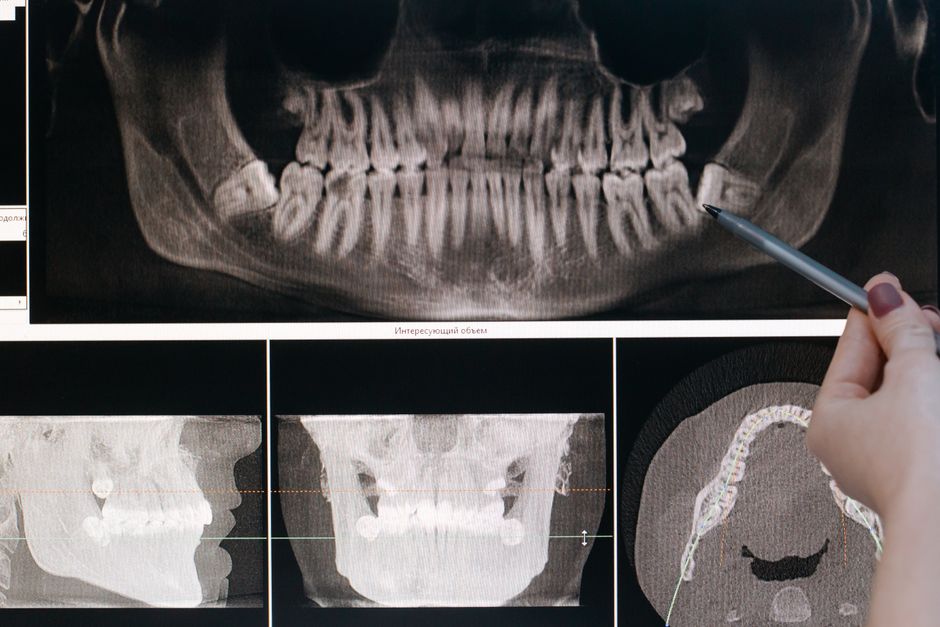
Insight3D is a powerful tool designed to enhance the workflow of dental professionals, particularly in the realm of 3D data handling. It is part of the Additional Tools category, aimed at optimizing the integration of 3D data into dental practices. Insight3D offers a range of features that make it an indispensable asset for those looking to streamline their dental data management, including secure repositories with encryption for sensitive patient data, advanced import and export tools, and robust troubleshooting capabilities.
Key Features of Insight3D
Secure Data Management
One of the standout features of Insight3D is its emphasis on secure data management. With the ability to create secure repositories that are encrypted, dental professionals can ensure that sensitive patient data is protected from unauthorized access. This feature is particularly important in the dental industry, where confidentiality and data protection are paramount.
Advanced Import and Export Tools
Insight3D also boasts advanced import and export tools that make it easier to work with 3D data. These tools allow for seamless integration with other dental software and systems, facilitating a smoother workflow and reducing the risk of data loss or corruption.
Troubleshooting Common Import Errors
Identifying the Issue
When troubleshooting common import errors with Insight3D, it’s essential to first identify the root cause of the problem. This may involve checking the file format, ensuring that the data is compatible with Insight3D, and verifying that the import settings are correctly configured.
Resolving Import Issues
Once the issue has been identified, resolving it typically involves adjusting the import settings, converting the file format, or updating the software to the latest version. Insight3D’s robust troubleshooting capabilities make it easier to diagnose and resolve import errors, minimizing downtime and ensuring that dental professionals can continue working efficiently.
Installation Guide
System Requirements
Before installing Insight3D, it’s crucial to ensure that your system meets the minimum requirements. This includes checking the operating system, processor speed, memory, and disk space. Ensuring that your system is compatible with Insight3D will help prevent installation issues and ensure a smooth setup process.
Installation Steps
The installation process for Insight3D is straightforward. Simply download the software from the official website, run the installation file, and follow the prompts to complete the setup. It’s recommended to restart your computer after installation to ensure that all components are properly registered.
Technical Specifications
Hardware Requirements
| Component | Minimum Requirement |
|---|---|
| Operating System | Windows 10 or later |
| Processor | Intel Core i5 or equivalent |
| Memory | 8 GB RAM |
| Disk Space | 10 GB available space |
Software Requirements
Insight3D is compatible with a range of dental software and systems. For a full list of compatible software, please refer to the official Insight3D website.
Pros and Cons
Advantages
- Secure data management with encryption
- Advanced import and export tools
- Robust troubleshooting capabilities
- Seamless integration with other dental software
Disadvantages
- Steep learning curve for beginners
- Resource-intensive, requiring a powerful computer
FAQ
Is Insight3D Free to Download?
Yes, Insight3D offers a free download option. However, some features may be limited in the free version. For full functionality, a licensed version is required.
What is the Best Alternative to Insight3D?
While Insight3D is a powerful tool, there are alternative software options available. The best alternative will depend on your specific needs and requirements. It’s recommended to research and compare different options before making a decision.