What is Clinica?
Clinica is a comprehensive dental practice management software designed to streamline workflows, enhance patient care, and improve overall efficiency. Developed with the latest technology and industry expertise, Clinica offers a robust suite of features that cater to the diverse needs of dental practices. From claims and encryption to scheduling and data handling, Clinica provides a cleaner, safer, and steadier way to manage dental operations.
Main Benefits of Clinica
With Clinica, dental practices can enjoy numerous benefits, including improved data handling, enhanced security, and streamlined workflows. The software’s intuitive interface and user-friendly design make it easy to navigate, even for those without extensive technical expertise.
Key Features of Clinica
DICOM Import and Export Tutorial
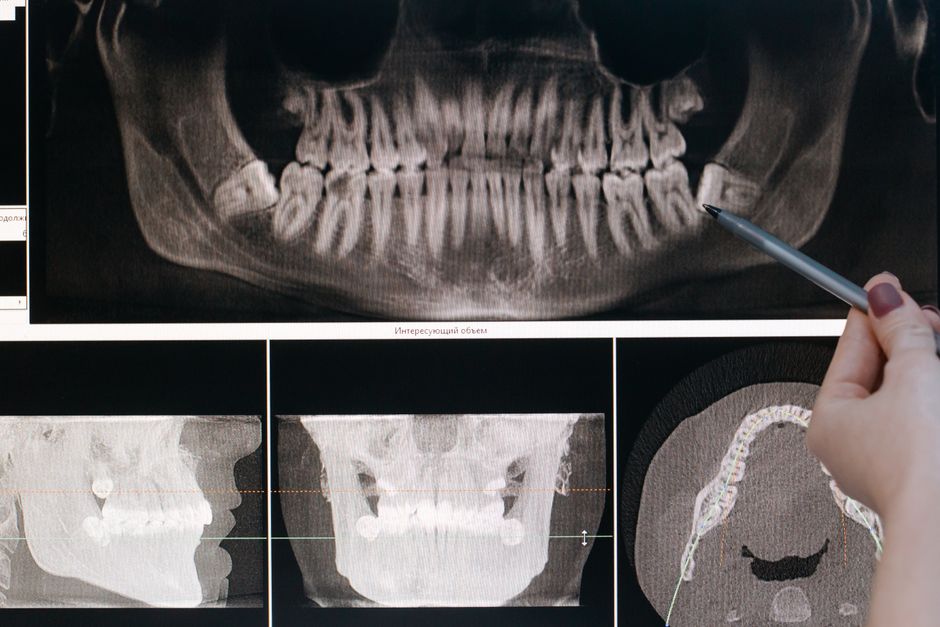
Clinica’s DICOM import and export feature allows for seamless integration with various imaging devices and systems. This tutorial will guide you through the process of importing and exporting DICOM files, ensuring that your dental practice can efficiently manage and share medical images.
Step-by-Step Guide
- Importing DICOM files: Simply select the file you wish to import, and Clinica will automatically convert it into a compatible format.
- Exporting DICOM files: Choose the file you want to export, and Clinica will ensure that it is converted into a format that can be easily shared with other systems or devices.
Recovery Tips and Best Practices
Backup and Recovery Strategies
To ensure that your dental practice’s data is safe and secure, it is essential to implement a robust backup and recovery strategy. Clinica offers automatic backup features, but it is also crucial to follow best practices, such as regularly verifying backups and storing them in a secure location.
Common Mistakes to Avoid
- Failing to regularly backup data
- Not verifying the integrity of backups
- Storing backups in an insecure location
Installation Guide
System Requirements
Before installing Clinica, ensure that your system meets the minimum requirements, including a compatible operating system, sufficient RAM, and adequate storage space.
Step-by-Step Installation Process
- Download the Clinica installation package from the official website.
- Run the installation file and follow the prompts.
- Accept the terms and conditions and choose the installation location.
- Wait for the installation to complete.
Technical Specifications
Hardware and Software Requirements
| Component | Minimum Requirement |
|---|---|
| Operating System | Windows 10 or macOS High Sierra |
| RAM | 8 GB |
| Storage Space | 10 GB |
Pros and Cons of Clinica
Advantages of Clinica
Clinica offers numerous advantages, including its user-friendly interface, robust feature set, and excellent customer support. However, like any software, it also has some drawbacks, such as a steep learning curve and limited customization options.
Comparison with Alternatives
- Clinica vs. Dentrix: Clinica offers more advanced features and better customer support, but Dentrix has a more intuitive interface.
- Clinica vs. Eaglesoft: Clinica has a more comprehensive feature set, but Eaglesoft is more affordable.
FAQ
Frequently Asked Questions
Q: Is Clinica compatible with my existing software?
A: Clinica is designed to be compatible with most dental practice management software. However, it is essential to verify compatibility before installation.
Q: Can I download Clinica for free?
A: Yes, Clinica offers a free trial version. However, the full version requires a subscription.
Q: What is the best alternative to Clinica?
A: The best alternative to Clinica depends on your specific needs and preferences. Some popular alternatives include Dentrix, Eaglesoft, and Curve.