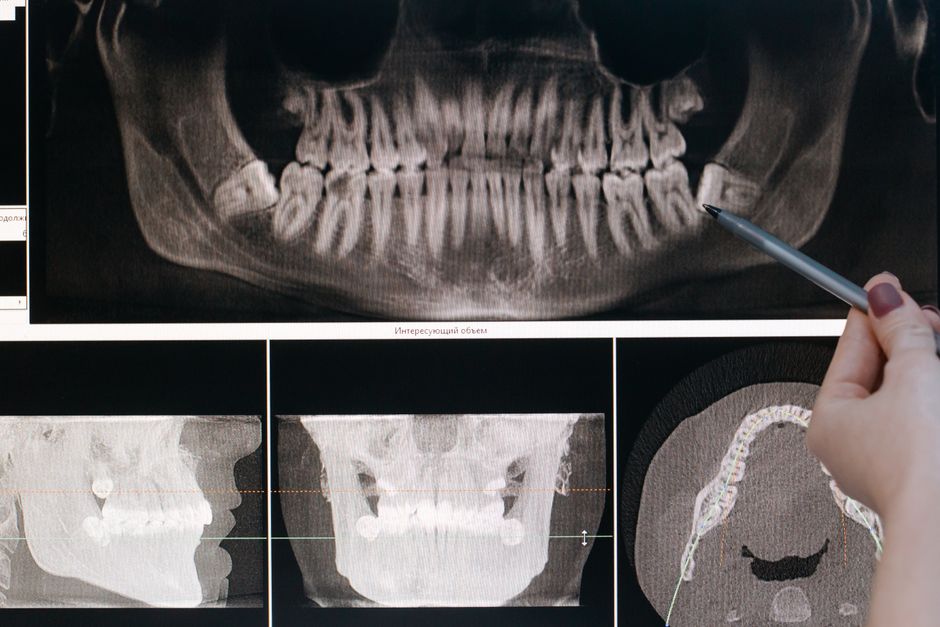
What is AMIDE?
AMIDE (Amide’s a Medical Imaging Data Examiner) is a free, open-source software tool designed for viewing, analyzing, and processing medical imaging data, particularly in the field of Digital Radiography and Imaging. It is widely used in the dental and medical industries for its ability to handle DICOM (Digital Imaging and Communications in Medicine) files, which are the standard format for medical imaging data.
Main Features of AMIDE
AMIDE offers a range of features that make it an essential tool for medical imaging professionals. Some of its key features include:
- Support for DICOM files, allowing for easy import and export of medical imaging data
- Advanced image processing and analysis capabilities, including filtering, thresholding, and region of interest (ROI) analysis
- Ability to create snapshots and annotations, making it easier to document and communicate findings
- Support for encryption, ensuring secure storage and transmission of sensitive medical data
Troubleshooting Common Import Errors in AMIDE
Understanding DICOM Import Errors
One of the most common issues users encounter when working with AMIDE is importing DICOM files. There are several reasons why this might happen, including:
- Corrupted or incomplete DICOM files
- Incompatible DICOM formats
- Insufficient disk space or memory
Resolving Import Errors
To resolve import errors in AMIDE, try the following:
- Verify the integrity of the DICOM file by checking its format and contents
- Ensure that the file is not corrupted or incomplete
- Check the AMIDE settings to ensure that the correct DICOM format is selected
- Free up disk space or increase memory to ensure sufficient resources for importing the file
Secure Repositories with Encryption for Dental Data
Why Encryption is Important
In the dental industry, patient data is sensitive and confidential. Encrypting this data is crucial to ensure its security and integrity. AMIDE provides support for encryption, allowing users to securely store and transmit dental data.
How to Enable Encryption in AMIDE
To enable encryption in AMIDE, follow these steps:
- Go to the AMIDE settings menu
- Select the