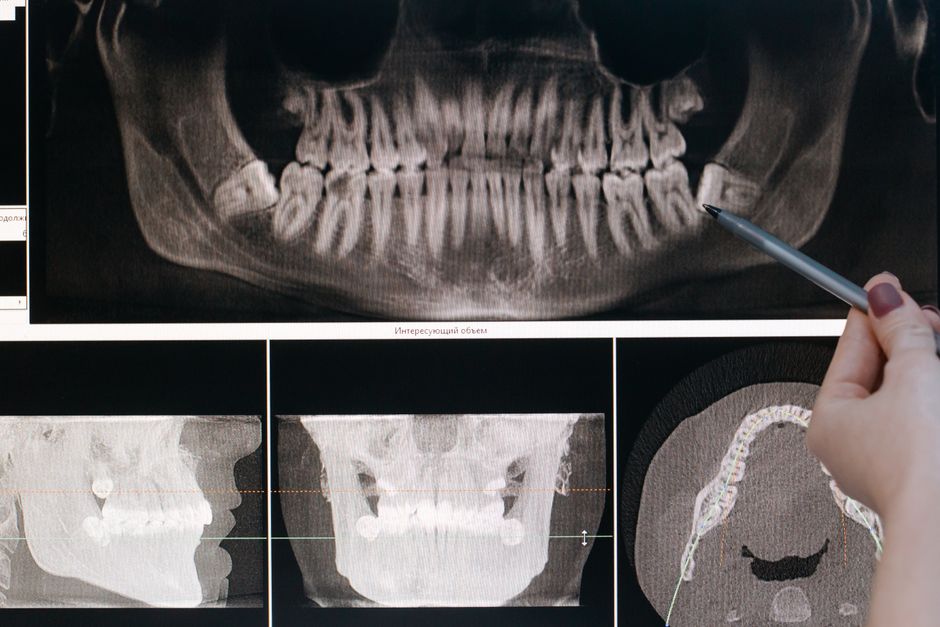
What is Clinica?
Clinica is a powerful dental practice management program designed to streamline workflows, improve patient care, and increase efficiency in dental clinics. Developed by Dentsoftpro, Clinica offers a comprehensive solution for managing imaging, records, and billing, making it an ideal choice for dental professionals. With its robust features and user-friendly interface, Clinica enables dentists to focus on providing high-quality care while reducing administrative burdens.
Main Features of Clinica
Clinica boasts a range of innovative features that set it apart from other dental practice management software. Some of its key features include:
- Imaging and Records Management: Clinica allows users to store, manage, and retrieve patient images and records with ease, ensuring that all information is accurate and up-to-date.
- Billing and Insurance Management: The software simplifies billing and insurance claims, reducing the risk of errors and rejected claims.
- Repository Management: Clinica provides a secure and centralized repository for storing patient data, ensuring that all information is safe and easily accessible.
- Snapshot Management: The software allows users to capture and manage snapshots of patient images, making it easier to track changes and monitor progress.
Installation Guide
System Requirements
To install Clinica, your system must meet the following requirements:
| Operating System | Windows 10 or later |
|---|---|
| Processor | Intel Core i3 or equivalent |
| RAM | 4 GB or more |
| Disk Space | 2 GB or more |
Installation Steps
Follow these steps to install Clinica:
- Download Clinica: Download the Clinica installation package from the Dentsoftpro website.
- Run the Installer: Run the installation package and follow the prompts to begin the installation process.
- Accept the License Agreement: Read and accept the license agreement to proceed with the installation.
- Choose the Installation Location: Select the location where you want to install Clinica.
- Complete the Installation: Follow the prompts to complete the installation process.
DICOM Import and Export Tutorial with Recovery Tips
Importing DICOM Files
To import DICOM files into Clinica, follow these steps:
- Select the Import Option: Click on the