Introduction
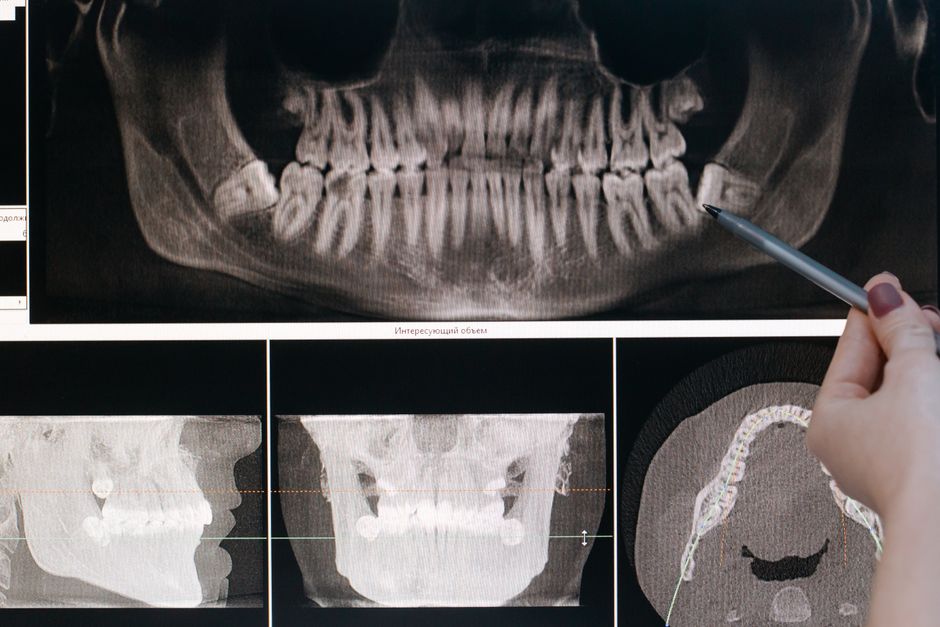
Clinica is a free dental planning tool designed to help dental clinics and professionals with dental visualization and implant planning. In this article, we will provide an overview of Clinica, its features, setup tips, and benefits for clinics. We will also discuss common issues such as Clinica license issues, Clinica license info, and Clinica export issues. Additionally, we will compare Clinica with ExoCAD, a popular dental CAD software, and provide guidance on how to connect Clinica to ExoCAD.
Clinica Features
Clinica offers a range of features that make it an ideal tool for dental clinics and professionals. Some of the key features include:
- 3D Visualization: Clinica allows users to create 3D models of teeth and jawbones, making it easier to visualize and plan dental procedures.
- Implant Planning: Clinica provides tools for planning and simulating dental implant procedures, including the ability to place virtual implants and abutments.
- Measurement and Analysis: Clinica allows users to take precise measurements and perform detailed analysis of dental structures.
- Collaboration Tools: Clinica enables users to share and collaborate on cases with colleagues and other stakeholders.
Setup and Installation
Setting up Clinica is relatively straightforward. Here are the steps to follow:
- Download the Clinica software from the official website.
- Install the software on your computer.
- Launch Clinica and follow the on-screen instructions to complete the setup process.
Clinica License Issue and Info
Some users may encounter issues with their Clinica license. Here are some common issues and solutions:
| Issue | Solution |
|---|---|
| Licensing error | Check that your license key is correct and that you have the latest version of Clinica installed. |
| License expiration | Check the expiration date of your license and contact the Clinica support team to renew or upgrade your license. |
Clinica Export Issue
Some users may encounter issues when trying to export data from Clinica. Here are some common issues and solutions:
| Issue | Solution |
|---|---|
| Export format not supported | Check that the export format you are using is supported by Clinica. Try using a different format such as STL or OBJ. |
| Export error | Check that your data is correct and that you have the latest version of Clinica installed. |
Clinica vs ExoCAD
Clinica and ExoCAD are both popular dental CAD software. Here is a comparison of the two:
| Feature | Clinica | ExoCAD |
|---|---|---|
| 3D Visualization | Yes | Yes |
| Implant Planning | Yes | Yes |
| Measurement and Analysis | Yes | Yes |
| Collaboration Tools | Yes | No |
| Cost | Free | Subscription-based |
How to Connect Clinica to ExoCAD
Connecting Clinica to ExoCAD is relatively straightforward. Here are the steps to follow:
- Export your data from Clinica in a format compatible with ExoCAD such as STL or OBJ.
- Import the data into ExoCAD.
- Use ExoCAD to design and manufacture dental restorations.
Conclusion
Clinica is a powerful and free dental planning tool that offers a range of features for dental visualization and implant planning. While it may have some limitations, it is a great option for dental clinics and professionals who want to improve their workflow and patient outcomes. By following the setup and installation instructions, and troubleshooting common issues, users can get the most out of Clinica. Additionally, by comparing Clinica with ExoCAD and learning how to connect the two, users can expand their dental CAD capabilities.