What is OpenOrtho?
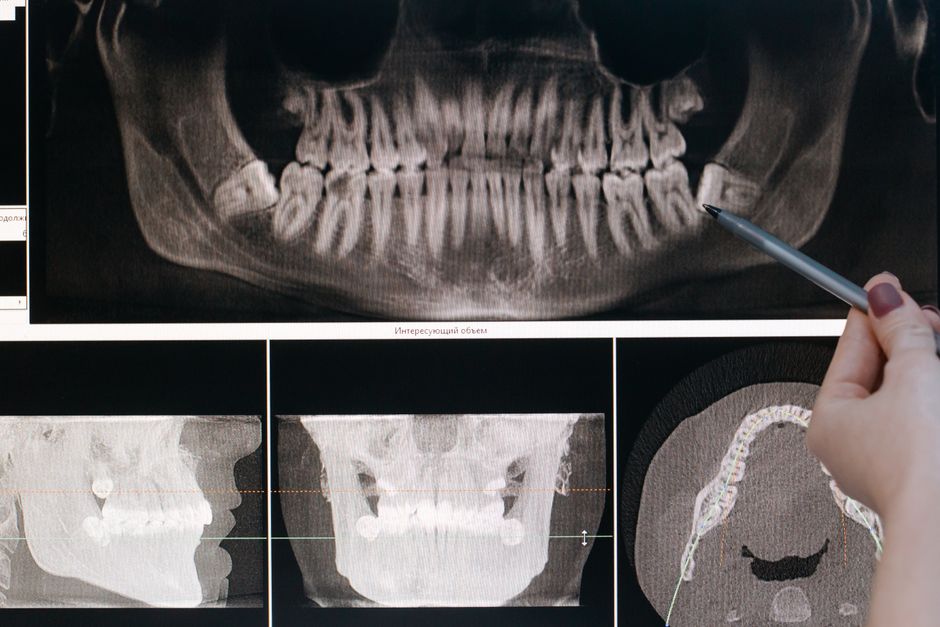
OpenOrtho is a comprehensive software solution designed for dental professionals, specifically tailored for 3D visualization, implantology, and surgery. This innovative tool is engineered to streamline workflows, enhance patient care, and improve overall practice efficiency. With OpenOrtho, users can effortlessly manage and analyze complex dental data, making it an indispensable asset for modern dental practices.
Main Features and Benefits
OpenOrtho boasts an array of cutting-edge features that set it apart from other dental software solutions. Some of its key benefits include:
- Advanced 3D visualization capabilities for precise treatment planning
- Seamless integration with CBCT and other imaging modalities
- Comprehensive implantology planning tools for optimal results
- Robust data management and backup systems for secure record-keeping
Getting Started with OpenOrtho
Installation Guide
To begin using OpenOrtho, follow these simple steps:
- Download the OpenOrtho software from the official website or through a authorized distributor
- Run the installation package and follow the on-screen instructions
- Activate the software using the provided license key
- Launch OpenOrtho and explore its intuitive interface
System Requirements
| Component | Minimum Requirement |
|---|---|
| Operating System | Windows 10 or macOS High Sierra (or later) |
| Processor | Quad-core processor (Intel Core i5 or AMD equivalent) |
| Memory | 8 GB RAM (16 GB or more recommended) |
| Graphics Card | Dedicated graphics card with 2 GB VRAM (4 GB or more recommended) |
Working with OpenOrtho
DICOM Import and Export Tutorial
OpenOrtho allows for seamless import and export of DICOM files, ensuring compatibility with various imaging modalities. To import a DICOM file:
- Select the ‘File’ menu and choose ‘Import DICOM’
- Navigate to the location of the DICOM file and select it
- OpenOrtho will automatically detect and import the file
To export a DICOM file:
- Select the ‘File’ menu and choose ‘Export DICOM’
- Choose the desired export settings and select the destination folder
- OpenOrtho will export the file in the selected format
Recovery Tips and Best Practices
To ensure optimal performance and data integrity, follow these best practices:
- Regularly back up your OpenOrtho data to a secure location
- Use the built-in restore points feature to safeguard against data loss
- Update OpenOrtho regularly to ensure access to the latest features and security patches
Alternatives to OpenOrtho
Comparison with Other Dental Software Solutions
While OpenOrtho is a powerful tool, other dental software solutions may offer similar features and benefits. Some popular alternatives include:
- Dentrix
- Eaglesoft
- Curve
When choosing a dental software solution, consider factors such as ease of use, feature set, and compatibility with your existing systems.
Conclusion
OpenOrtho is a robust and feature-rich software solution designed to meet the unique needs of dental professionals. With its advanced 3D visualization capabilities, seamless integration with CBCT and other imaging modalities, and comprehensive implantology planning tools, OpenOrtho is an indispensable asset for modern dental practices. By following the guidelines outlined in this article, users can unlock the full potential of OpenOrtho and take their practice to the next level.