What is OpenOrtho?
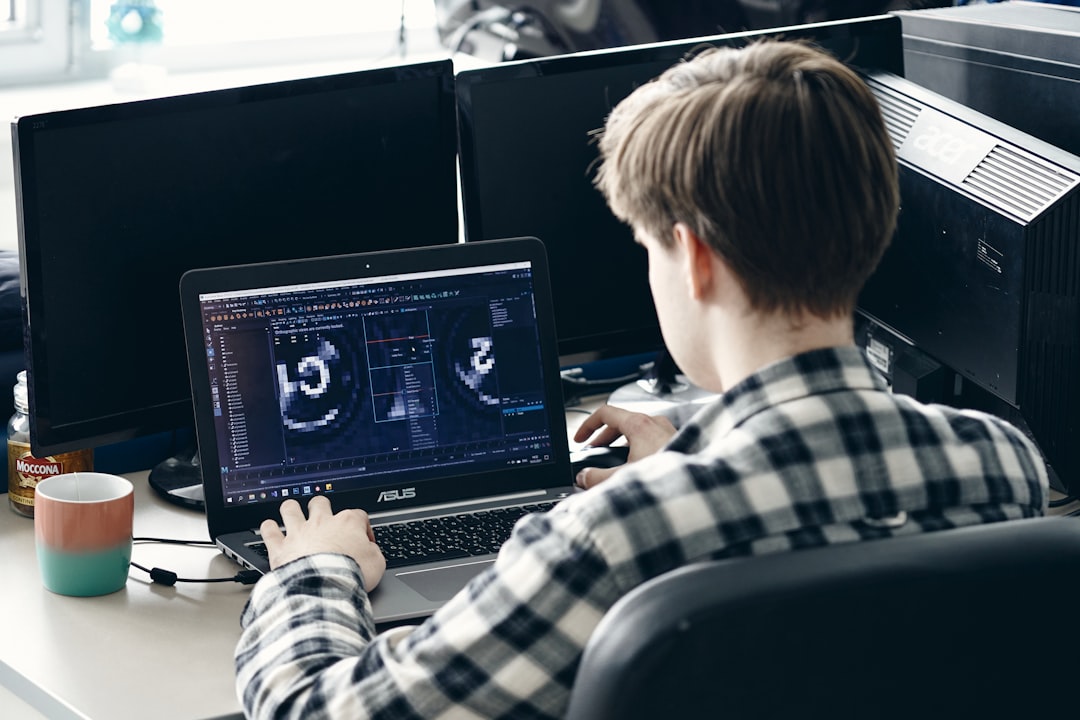
OpenOrtho is a cutting-edge software program designed specifically for dental professionals, focusing on 3D visualization, implantology, and surgery. It offers a comprehensive suite of tools to enhance workflows, streamline data handling, and ensure safer recovery and steadier operations. With OpenOrtho, dental experts can leverage advanced features like snapshots, CBCT, and 3D planning to achieve more accurate and efficient outcomes.
Key Features of OpenOrtho
Advanced 3D Visualization
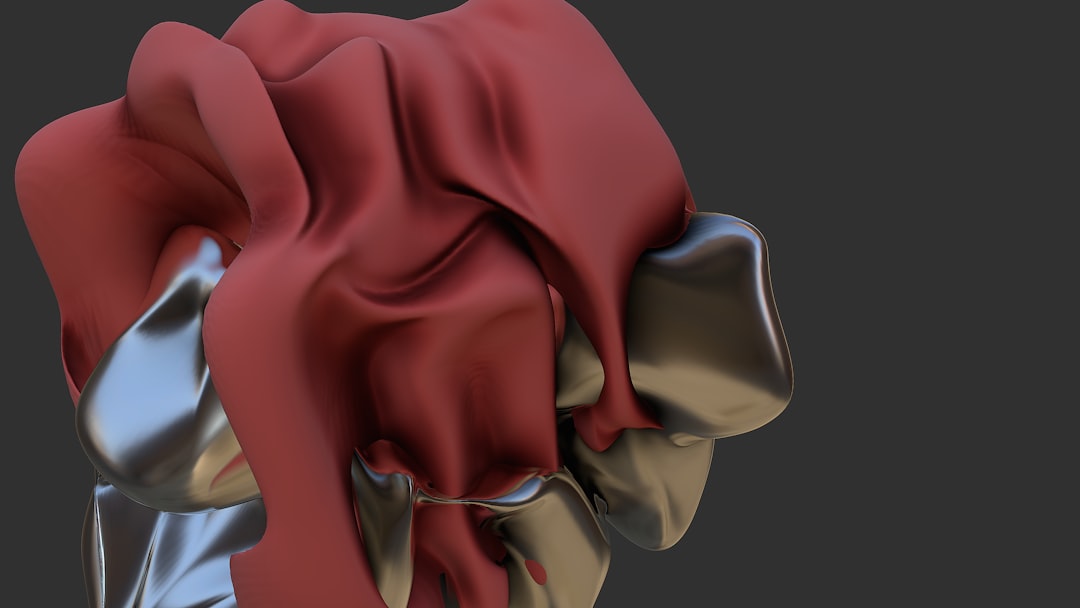
OpenOrtho boasts robust 3D visualization capabilities, allowing users to create detailed, high-quality images from various data sources, including CBCT scans. This feature facilitates more accurate diagnoses and treatment planning.
Secure Data Handling
The software prioritizes data security, offering secure repositories with encryption for sensitive dental data. This ensures that patient information remains confidential and protected.
Streamlined Workflows
OpenOrtho is designed to simplify and accelerate dental workflows. Its intuitive interface and automated features minimize manual errors, saving time and reducing the risk of complications.
Installation Guide
System Requirements
To install OpenOrtho, ensure your system meets the following requirements:
- Operating System: Windows 10 or later
- Processor: Intel Core i5 or equivalent
- Memory: 8 GB RAM or more
- Storage: 256 GB available disk space
Download and Installation
Download the OpenOrtho installer from the official website. Follow the on-screen instructions to complete the installation process.
Troubleshooting Common Import Errors
Error 1: File Format Not Supported
If you encounter an error message stating that the file format is not supported, ensure that the file is in a compatible format (e.g., DICOM, STL, or OBJ). Try converting the file to a supported format using a third-party software.
Error 2: Insufficient Memory
If the software reports insufficient memory, try closing other resource-intensive programs or increasing the RAM on your system.
Comparison with Open-Source Options
Key Differences
While open-source alternatives may offer similar features, OpenOrtho stands out due to its:
- Advanced 3D visualization capabilities
- Robust data security measures
- Streamlined workflows and automated features
Pros and Cons of Open-Source Options
Open-source alternatives may offer cost savings, but often require significant customization and technical expertise. They may also lack the advanced features and support offered by OpenOrtho.
FAQ
Is OpenOrtho available for free?
Yes, OpenOrtho offers a free version with limited features. For full functionality, consider purchasing a license.
Can I use OpenOrtho on a Mac?
No, OpenOrtho is currently only compatible with Windows operating systems.