What is TeachMe Dental Lite?
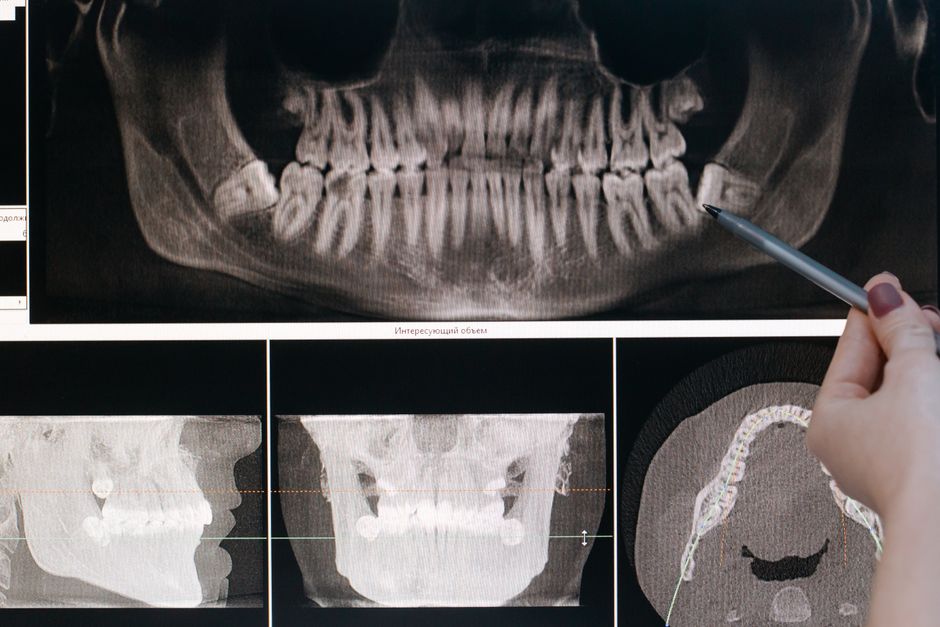
TeachMe Dental Lite is a comprehensive educational software designed for dental clinics and educational institutions. It offers a unique combination of interactive visual materials, clinical workflow management, and data encryption, making it an ideal tool for teaching and learning dentistry. With TeachMe Dental Lite, users can create, manage, and share case studies, snapshots, and restore points, streamlining the educational process and improving patient care.
Main Features
TeachMe Dental Lite boasts an array of features that cater to the needs of dental educators and students. Some of the key features include:
- Clinical workflow management with snapshots and restore points
- Interactive visual materials for enhanced learning
- Data encryption for secure storage and sharing
- Case study management and sharing
Installation Guide
Installing TeachMe Dental Lite is a straightforward process that can be completed in a few steps. Here’s a step-by-step guide to help you get started:
System Requirements
Before installing TeachMe Dental Lite, ensure that your system meets the minimum requirements:
| Operating System | Windows 10 or later |
|---|---|
| Processor | Intel Core i3 or equivalent |
| Memory | 4 GB RAM or more |
Step 1: Download and Install
Download the TeachMe Dental Lite installer from the official website and follow the prompts to install the software. The installation process should take a few minutes to complete.
Step 2: Activate the Software
Once installed, activate the software using the provided license key. This will unlock the full features of TeachMe Dental Lite.
Clinical Workflow with Snapshots and Restore Points
TeachMe Dental Lite’s clinical workflow management feature allows users to create and manage snapshots and restore points, making it easier to track patient progress and share information with colleagues. This feature is particularly useful for dental educators, as it enables them to create realistic case studies and share them with students.
Creating Snapshots
To create a snapshot, simply click the